How to use Xero
How to use Xero for writing quotes and invoices
Getting started
- Request your manager to add you to EnergyAE Xero with invoice access
- Go to Xero
- Complete Xero account profile details
Add new company contact
To add a company to XERO, we need the following details:
- Company Name
- Contact Name
- Contact email
- Billing address
How to Create a XERO Invoice
Ideally we should send a Quote at the start of the project, which can later be converted into an invoice.
- Always use EnergyAE NZ for invoicing.
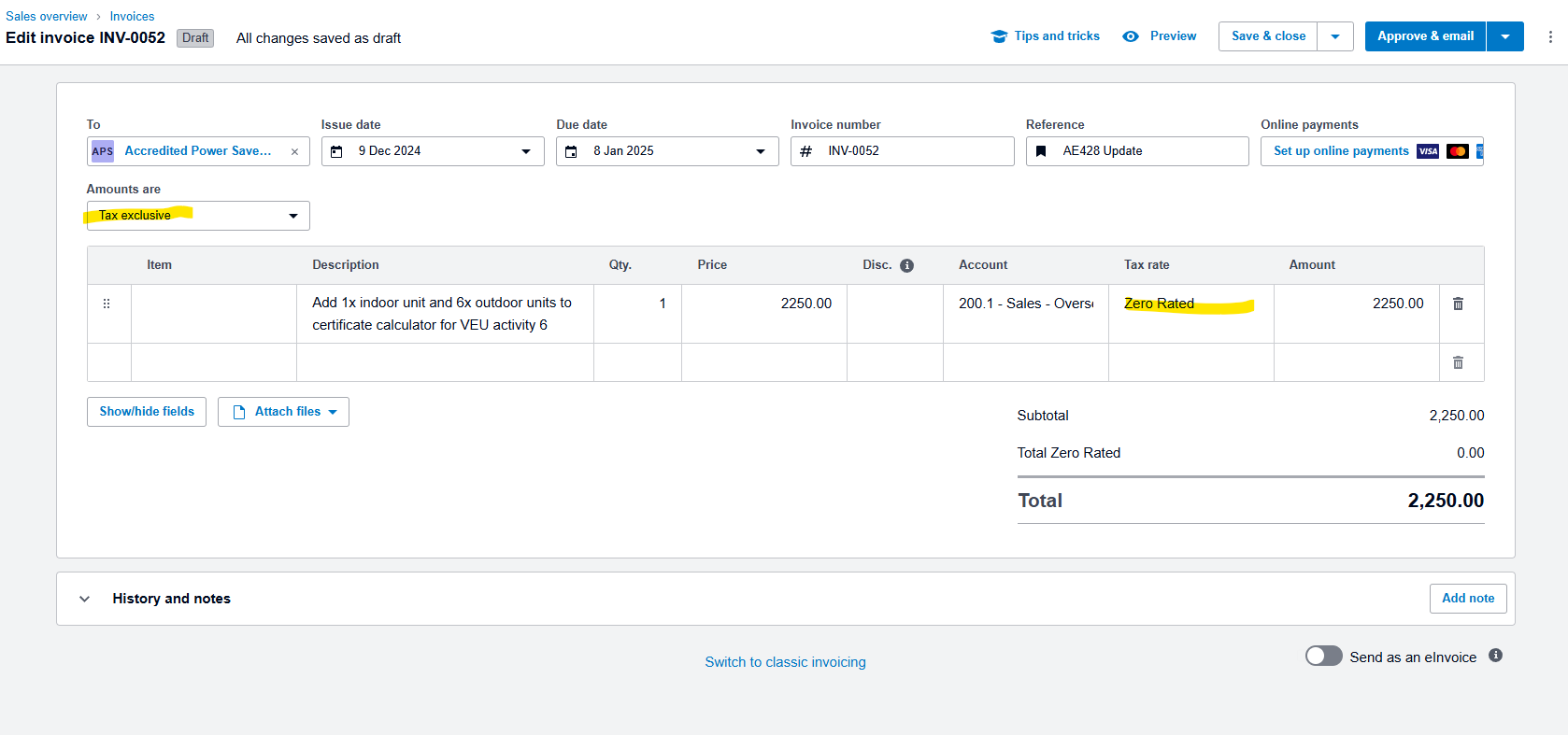
- Client: select the client to be billed from contact list 3. If new client, add new client details first, then create invoice
- Pricing: to determine price, check Purchase order details, or written agreement on price, or use pricing lists. 5. Pricing list on SharePoint which are also loaded into Xero as “Items”. 6. Select the relevant item from the dropdown, or add a new description for custom jobs. 7. Copy all text from the Purchase Order (PO) regarding the line item so it can be easily reconciled by the client.
- Branding: “No discount” except for TRNSYS sales, “Basic software invoice”
- keep the Invoice number as “INV-xxxx”
- Reference: include AE*** project number and if applicable, PO number
.png)
- Discount: 0% as default
- Account: Sales - overseas or Australia/NZ depending on the client & EAE company sending the invoice.
- Tax: all invoices are Tax Exclusive. For overseas transactions, GST is Zero Rated. Domestic sales incur GST.
- Submit the invoice for approval.